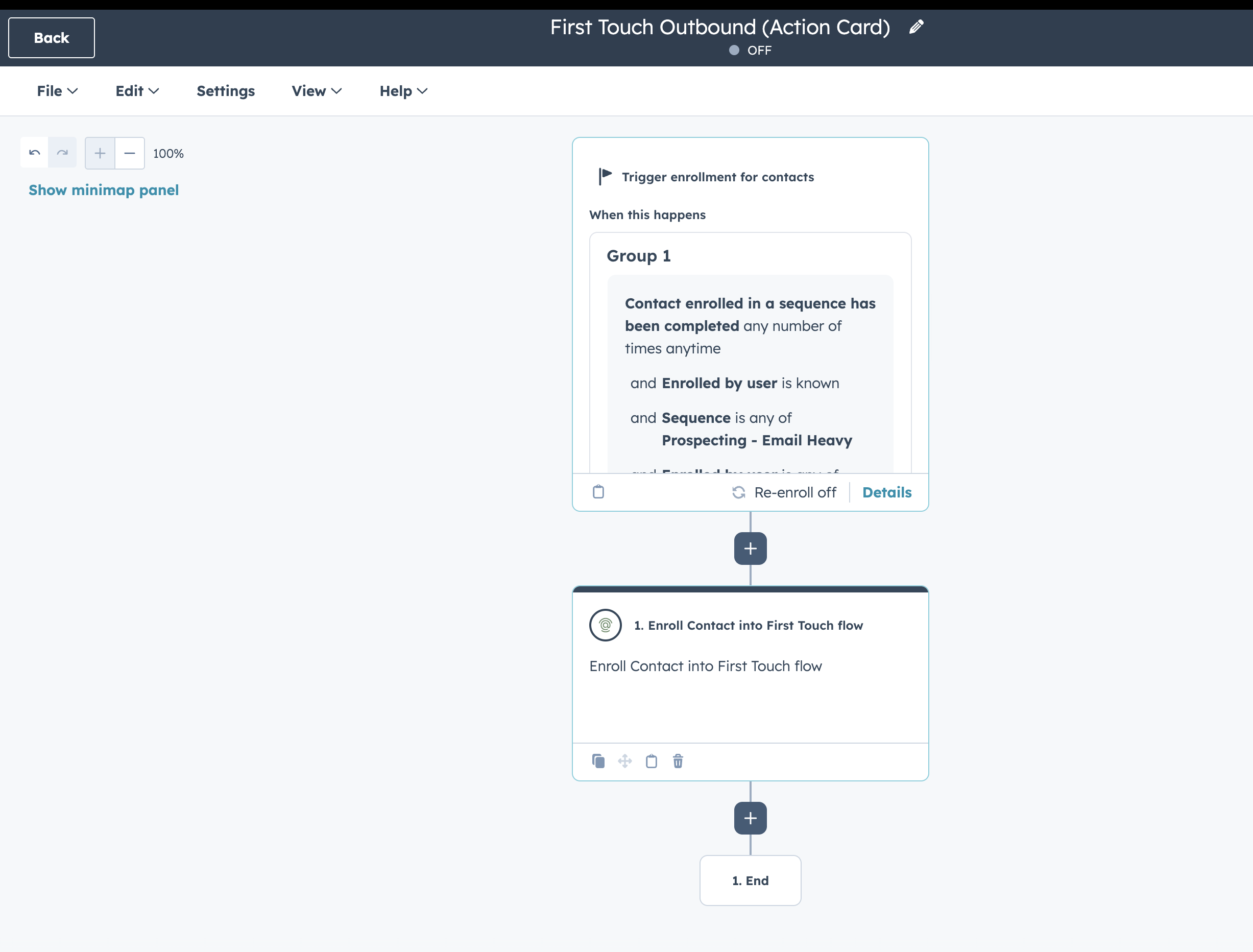
First Touch provides custom actions that integrate directly into HubSpot’s Automation > Workflows tool. This allows you to orchestrate sophisticated outreach sequences based on HubSpot triggers (e.g., “Form Submission”, “Lead Status Change”, or “Deal Stage Update”).
Crucial Prerequisite: To enroll a contact into a flow via HubSpot, the Flow Plan in First Touch must be configured with a “Manual Audience” source. Flows attached to “Signals” (like Website Traffic) or “HubSpot Lists” will not appear in the workflow action dropdown.

Setting up an Action

1

Create a Workflow

In HubSpot, navigate to Automation > Workflows. Create a new Contact-based workflow (First Touch actions currently support the Contact object).
2

Add an Action

Click the + (plus) icon to add a step.
3

Select First Touch

In the side panel, scroll down to the “Integrated apps” section and select First Touch.Selecting First Touch in HubSpot Workflows
4

Configure Action

Choose one of the available actions (detailed below).
  • For Enrollment: You must select a specific Manual Flow Plan from the dropdown menu.
  • For LinkedIn Actions: You must select a Sender (either “Contact Owner” to map dynamically, or a specific manual user).
5

Save

Click Save. When the workflow runs, First Touch will automatically process the contact according to your Flow Plan settings (including exclusion checks and credit usage).

Available Actions

You can mix and match these actions to build complex nurture sequences.
Action NameDescription & Configuration
Enroll Contact into First Touch FlowAdds the contact to a specific First Touch sequence.
Config: Select First Touch Flow (Manual Audience flows only).
Unenroll ContactImmediately removes the contact from any active First Touch flow. Useful for “Stop” triggers (e.g., when a Deal is created).
Config: None required.
Visit LinkedIn ProfileInstructs the assigned LinkedIn account to visit the prospect’s profile (soft touch).
Config: Assign LinkedIn Sender.
Send Connection RequestSends a LinkedIn connection request. Includes auto-withdrawal logic if not accepted in 14 days.
Config: Assign LinkedIn Sender.
Send LinkedIn MessageSends a DM to a 1st-degree connection.
Config: Assign LinkedIn Sender.

Behavior & Logic

Ownership Mapping

When a HubSpot workflow triggers an action, First Touch attempts to assign the task to the correct team member based on the HubSpot Contact Owner.
  • If the HubSpot Owner exists in First Touch (matched by email), the action is assigned to them.
  • If the Owner is missing or not mapped, First Touch falls back to the “When owner is not from your team” setting defined in your Flow Plan (e.g., Round Robin assignment).

LinkedIn Action Dependencies

The Send LinkedIn Message action has built-in safety logic:
  1. Connection Check: The system checks if the prospect is a 1st-degree connection.
  2. Wait Logic: If they are not connected (e.g., a connection request is still pending), the message action will generally wait or fail safely depending on your flow configuration. It is best practice to place a “Delay” or check connection status before sending messages.
  3. URL Enrichment: If the HubSpot contact lacks a value in hs_linkedin_url, First Touch will attempt to enrich this field automatically before executing the action.