

Setting up the UI Card
By default, the card may not be visible. You must manually add it to your contact record view configuration.1
Open Record Customization
Navigate to any Contact record in HubSpot. Click on the Settings (gear icon) or find the Customize record link (often located in the top right or within the “Actions” dropdown).
2
Select the View
Select Customize the middle column. Choose the view you want to modify (e.g., Default view or a specific Team View).
3
Add the Card
- Click the Add cards button.
- Search for “FirstTouch”.
- Check the box to select it.
- Drag and drop the card to your desired position (we recommend placing it near the top for better visibility).
4
Save Layout
Click Save and exit. The UI Card will now appear for all contacts using that view.
Using the Card
The UI Card is dynamic; it changes its interface based on whether the contact is new, being researched, or currently enrolled in a flow. If you are not signed in to First Touch, the card asks you to log in and refresh the HubSpot card.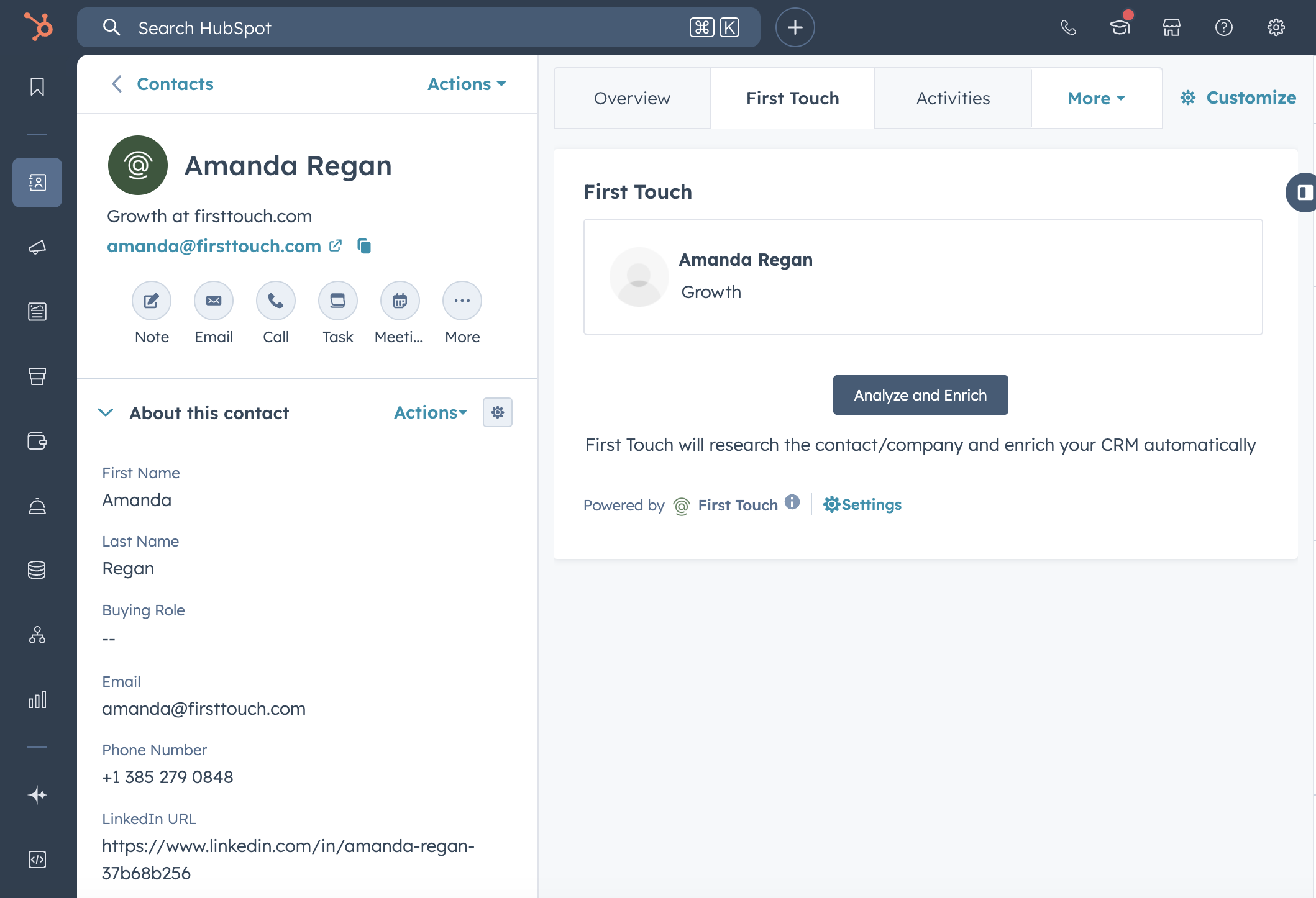
1. Analyzing New Contacts
If a contact in HubSpot has not been processed by First Touch yet, the card displays an “Analyze and Enrich” button.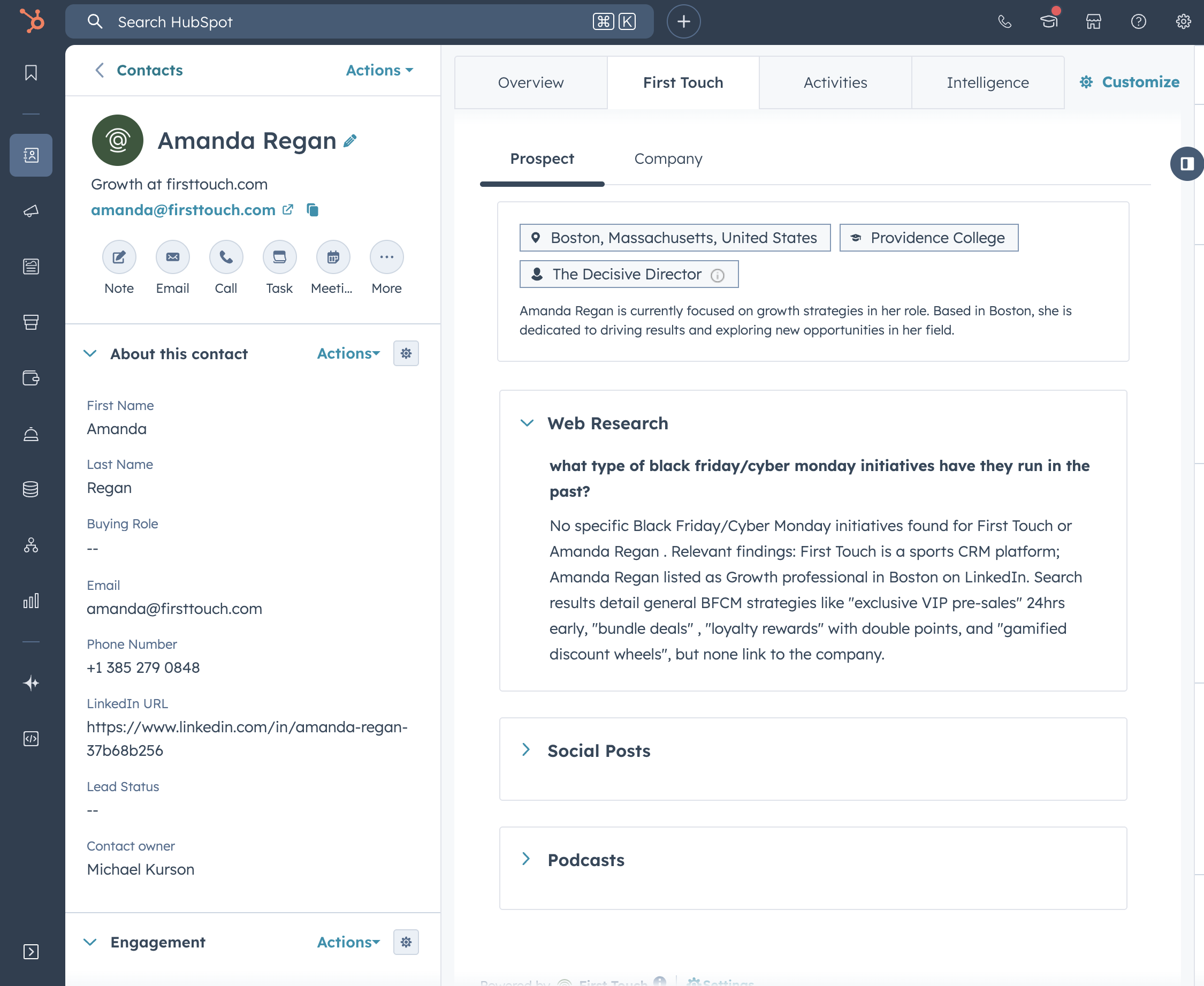
- Action: Clicking this can run FirstTouch research or enrichment for the contact and company.
- Result: The card shows available data and can prepare the prospect for enrollment when enough identity is available. Enrichment results are not guaranteed, and some fields may remain missing.
- Common Mailbox Handling: If the contact has a generic email (e.g.,
@gmail.com) and no website domain, the card will prompt you to manually enter a Company Domain so the AI can perform accurate company research.
2. Managing Approval Tasks
If the prospect reaches an Approval Section, the card can display the current Approval Task and its grouped actions.Approval Tasks
Review & Edit: Review the supported email, social, call, or manual actions grouped in the approval.
- Edit: You can edit the content directly in the card. Note: The HubSpot card supports plain text editing only; rich text formatting is available in the First Touch web app.
- Execute: Click Approve & Run to approve the grouped actions and allow the Flow Enrollment to advance.
- Cancel: Click Cancel to stop this prospect’s Flow Enrollment. This does not delete or unpublish the Flow Plan.
The card does not provide standalone controls for an individual Call Task or Manual Task. Manage those tasks in the FirstTouch web app. A call or manual action can still appear when it belongs to the current grouped Approval Task.
3. Viewing Intelligence
Even if no task is due, the card acts as a research dossier. You can toggle between tabs to view deep insights:- Prospect Tab: AI background summary, education, location, and personality insights.
- Company Tab: Funding data, tech stack, recent news, and hiring trends.
- Activities Tab: Recent First Touch activity, status, and outcome details when available.