Connecting Your Account
To enable LinkedIn automation, you must connect your personal LinkedIn account within the First Touch settings. We support a “Credentials + 2FA Secret” method (often called “Infinite Connection”) which provides the most stable, long-term link.New to Authenticator Apps? Click here for setup instructions.
New to Authenticator Apps? Click here for setup instructions.
If you have never used an authenticator app before, follow these quick steps on your mobile phone:
- Download the App: Go to the App Store (iOS) or Google Play Store (Android). Search for and download “Google Authenticator” or “Microsoft Authenticator”.
- Open the App: Launch the app on your phone.
- Start Setup:
- Google Auth: Click the colorful + (plus) button in the bottom corner.
- Microsoft Auth: Click the + button and select “Personal account” (or “Other”).
- Ready to Connect: You will see options to “Scan a QR code” or “Enter a setup key.” You will use these features in Step 3 below.
1
Access User Accounts
Navigate to Settings > Profile and open the User Accounts tab. Click “Add account”.
2
Enter Credentials
Enter the Email and Password you use to log in to LinkedIn.
3
2FA Secret (Crucial Step)
For the connection to remain active without constant re-logins, you must provide your 2FA Secret Key. This is not the 6-digit code that changes every 30 seconds; it is the permanent “key” used to generate those codes.How to find your 2FA Secret: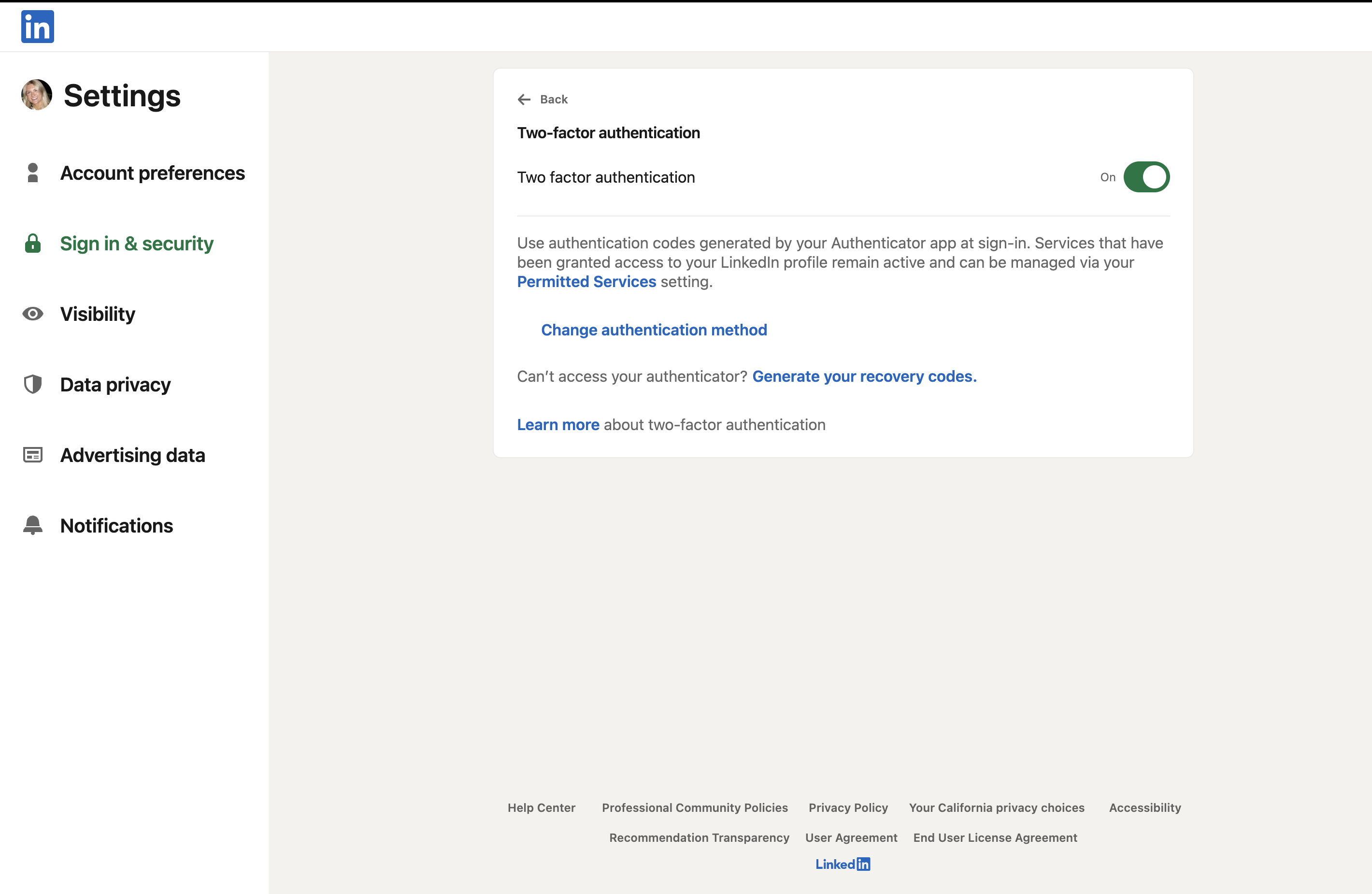
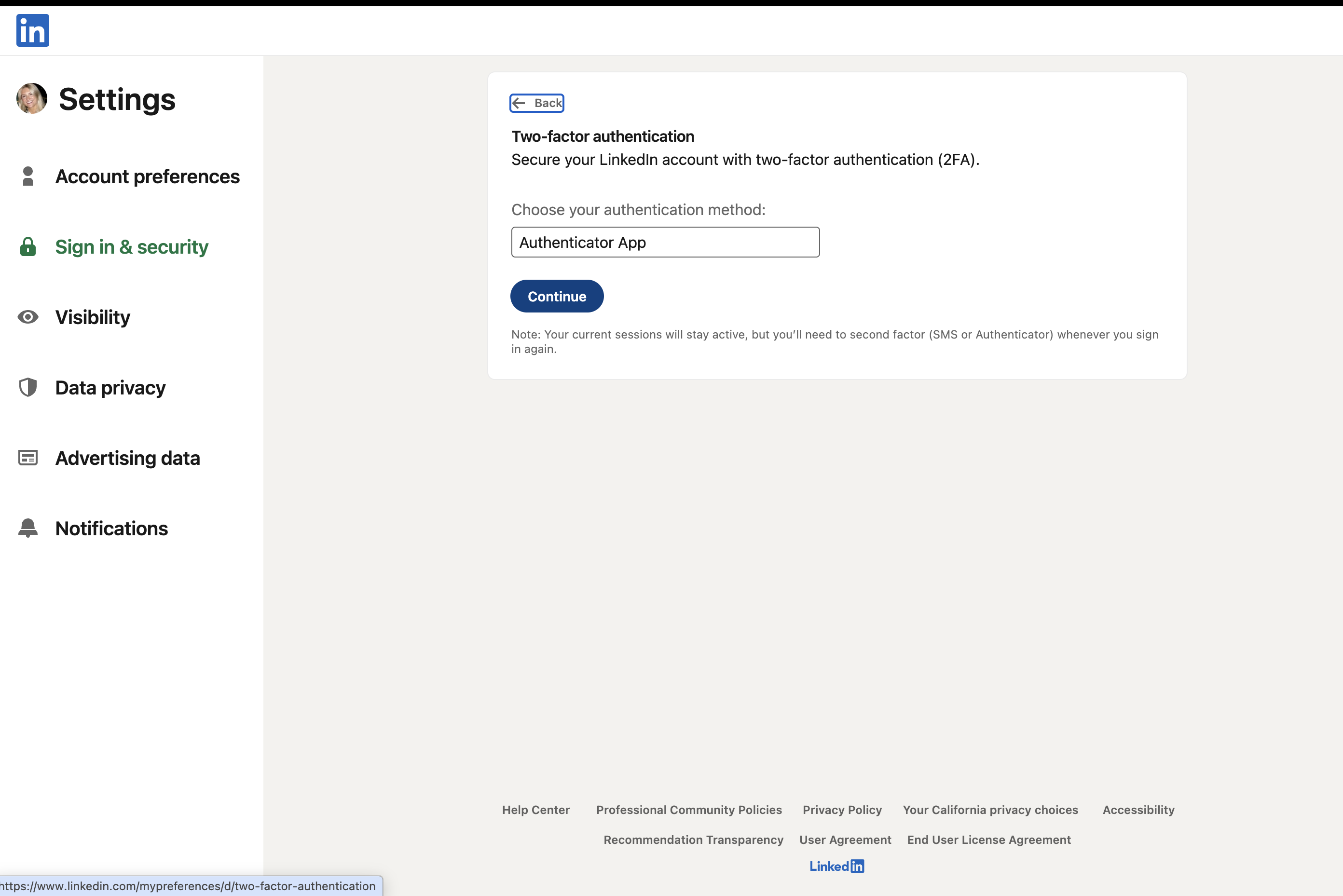
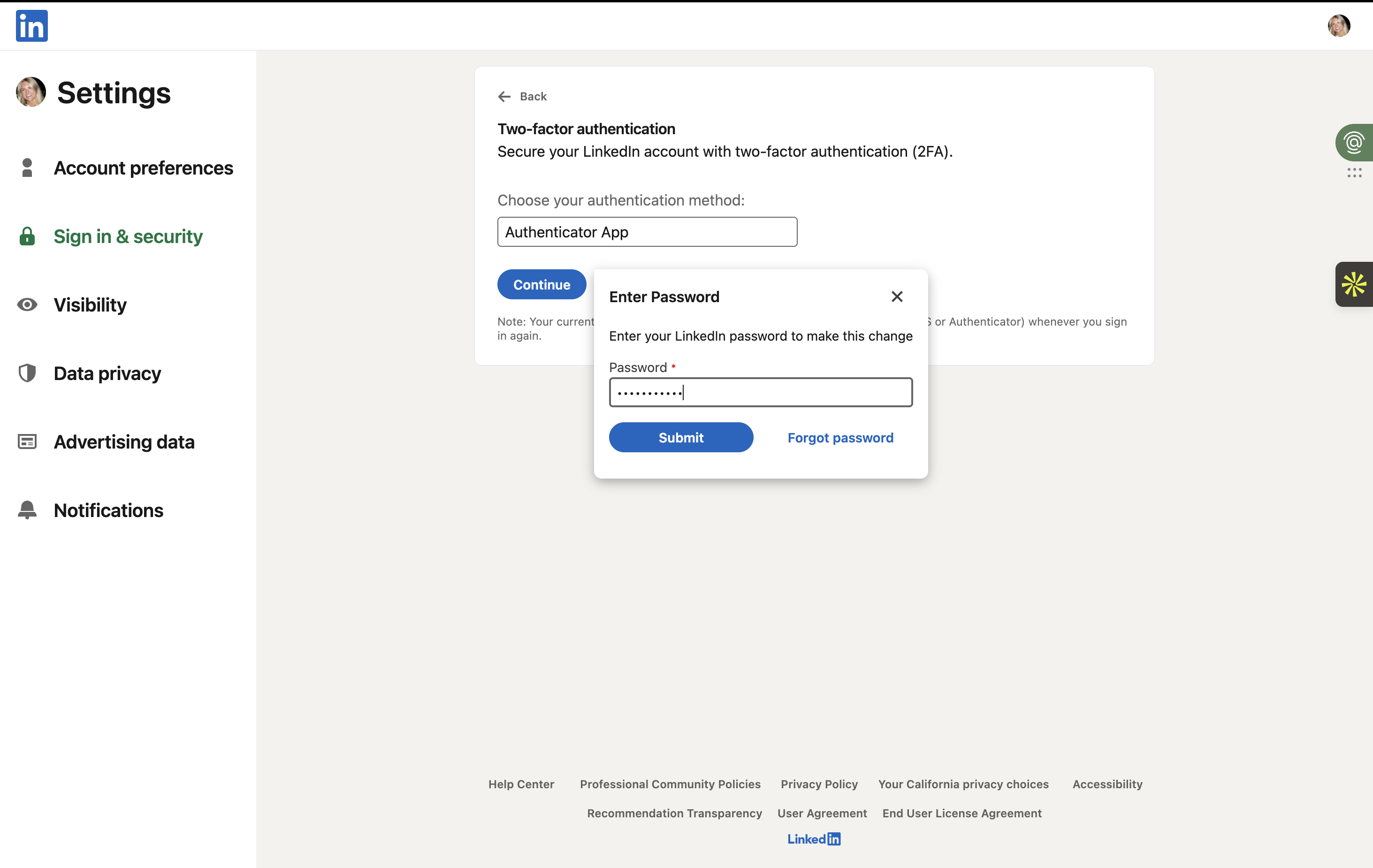
- Go to your LinkedIn Settings > Sign in & security > Two-step verification.
- Important: If Two-step verification is currently ON, you must turn it OFF first. Then, click to turn it back ON. This acts as a reset to reveal the setup screen again.
- When asked to choose a method, select Authenticator App.
- Enter your LinkedIn password to confirm the change.
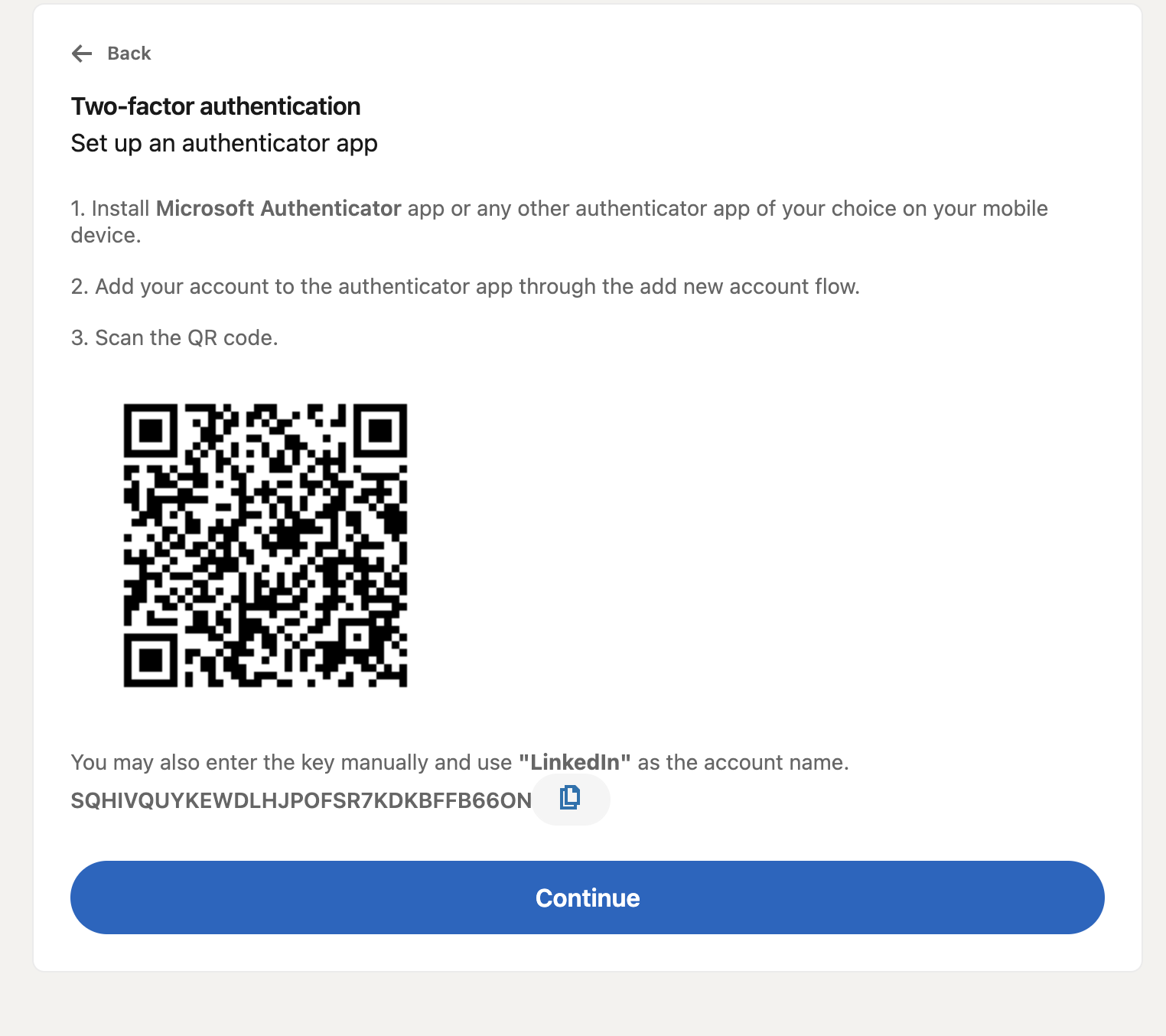
- You will see a QR code. Do not scan it yet. Look for the small text link that says “Can’t scan the QR code?” (or similar). Click it to reveal the Secret Key.
- Copy the code displayed under “Secret Key” (it will look like a long string of random letters, e.g.,
SQHIV...).
- Paste this code into the 2FA Secret field in First Touch.
- Finalize on LinkedIn: Now, scan the QR code with your phone’s Authenticator app and enter the 6-digit code into LinkedIn to finish enabling 2FA.
4
Set Location
To ensure our proxies match your typical login behavior, please specify your Country and City. This prevents LinkedIn from flagging “unusual login locations”.
5
Safety Check
Before finalizing, confirm the safety prerequisites:
- Your account has at least 100 connections (automating brand new accounts is risky).
- You are not using other LinkedIn automation tools simultaneously.
- You will follow First Touch warming procedures: First Touch Warming Guide.
Safety Features
Your account security is our top priority. We run a sophisticated infrastructure to ensure your automation looks indistinguishable from human activity.Dedicated Residential IP
We assign a static residential IP address to your account. This means your “location” remains consistent, preventing the red flags caused by frequent IP jumping.
Human-Like Behavior
Our Agentic browser technology mimics real human interaction. Mouse cursors move uniquely (never repeating patterns) and navigate via clicks rather than jumping directly to URLs.
Smart Scheduling
Actions are scheduled during your defined Working Hours with randomized delays (30–90 seconds) between tasks, just like a real person working through a list.
Strict Daily Limits
We enforce a hard safety cap of 200 total actions per day (views, connects, messages combined). If this limit is reached, the account pauses until the next day to protect you.
Troubleshooting Statuses
You can check your connection health in the Settings > Accounts tab.| Status | What it means | Action Required |
|---|---|---|
| Available | Connected and working normally. | None. |
| PIN Required | LinkedIn is asking for a verification code (SMS/Email). | Check your email/phone and enter the code in First Touch. |
| Wrong Credentials | Password may have changed or was entered incorrectly. | Re-enter your latest password. |
| Wrong 2FA Secret | The secret key was invalid. | Repeat the 2FA setup steps above to get a new Secret Key. |
| Not Connected | Session expired or disconnected. | Click Re-log to resume flows. |
If your account disconnects: All LinkedIn actions in your active flows will automatically pause. They will resume exactly where they left off once you reconnect.