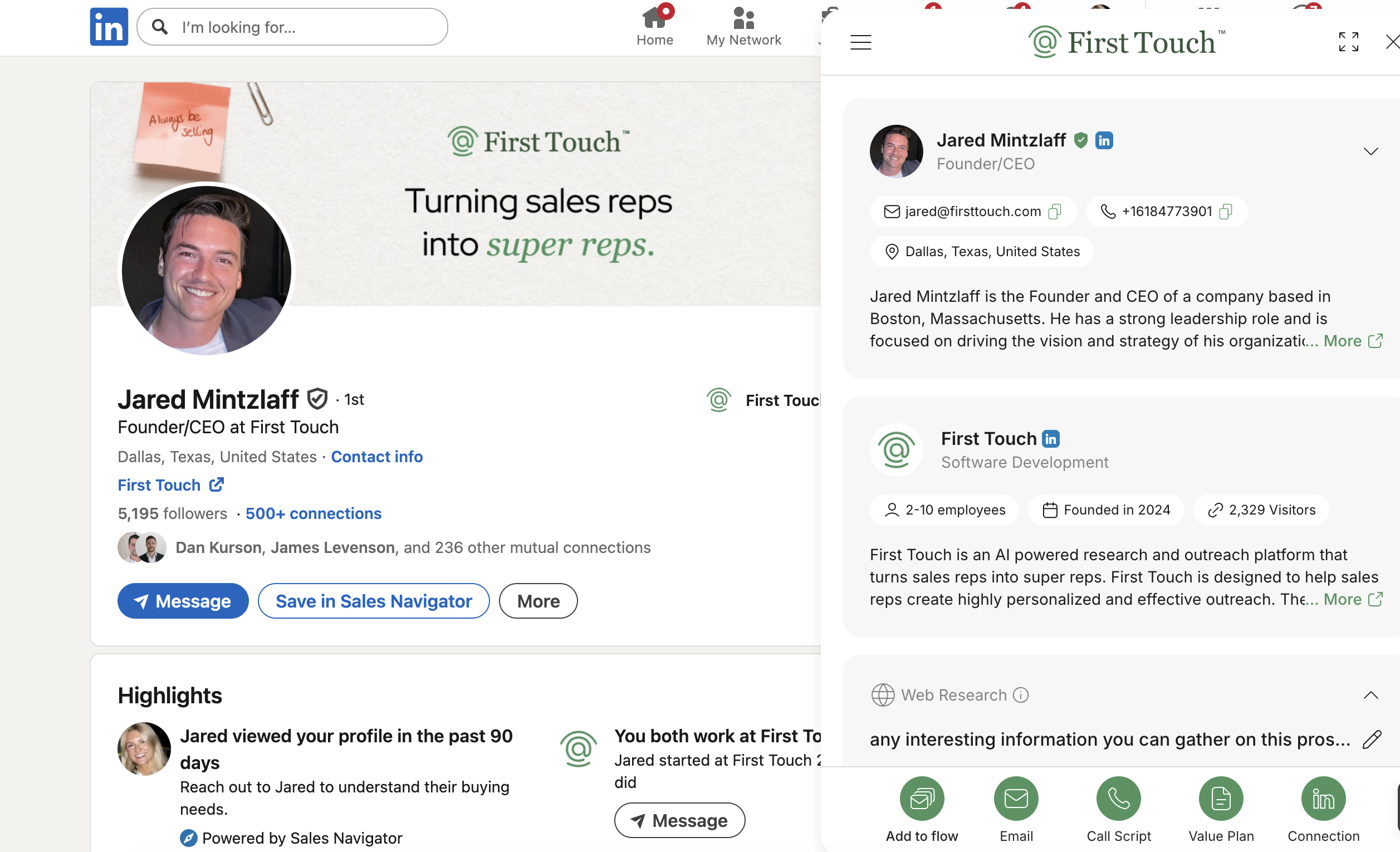
Skip to main contentThe Action Bar is the set of AI-powered tools in the extension that help you engage the prospect. With a single click, you can generate various types of outreach content. The Action Bar includes: Email, LinkedIn Message, Call Script, and Value Plan. Each opens a focused interface in the sidebar to create that specific asset.
Email
On the Email tab of the sidebar, you can generate, customize, and send a personalized email directly to the prospect. First Touch uses information about the prospect and your own context to draft a highly tailored message.
- Generate an Email: Click the Generate Email button. First Touch’s AI will combine multiple data points – your profile & company info, your Knowledge Base (“what you sell” and “who you sell to”), and the prospect research (their profile summary, recent posts, etc.) – to produce a first draft email. Within a few seconds, the Email tab will be populated with a suggested subject line and an email body designed for this prospect.
- Subject Line Options: The AI typically comes up with a few potential subject lines. One will be selected by default, but you can click the subject line dropdown to view alternatives. Choose your preferred line or edit it entirely – you have full control.
- Editing the Draft: The generated email appears in an editor where you can make tweaks. You might want to adjust the tone, add a specific personal reference the AI missed, or include a custom call-to-action. The editor supports basic formatting (bold, italics, lists, links) to help you polish the email. Edits are auto-saved as you type, so you won’t lose your changes. If you don’t like the draft at all, you can click Regenerate to have the AI try a different approach.
- Sending the Email: Once you’re happy with the message, click Send. The email will be sent directly from your connected email account (e.g. your Gmail or Outlook) via First Touch. The prospect receives it as an email from you, just as if you sent it from your inbox. Your email signature can be automatically included or omitted based on your settings.
- Follow-Ups: If the prospect doesn’t reply to this initial email, you have options for following up:
- You can come back to the prospect’s profile later and manually generate a new follow-up email using the extension (following the same process as above).
- First Touch might suggest follow-up ideas or next steps in the extension, based on the context, to help you decide what to do next.
- You can also add the prospect to a longer-term sequence by clicking Add to Flow (see below). This will automate future follow-ups according to a predefined flow.
- Reply Tracking: Any reply the prospect sends to your email will be detected by First Touch. You’ll see the reply logged in First Touch, and if that prospect was in a flow, the reply would trigger an automatic pause to avoid sending further automated emails.
Using the Email generator helps ensure every outreach is custom-tailored, while still saving you time on drafting.
LinkedIn Message
The LinkedIn tab in the extension helps you craft personalized LinkedIn outreach messages. Since LinkedIn’s policies require manual sending of messages, First Touch focuses on helping you write a great message quickly, while you remain in control of sending it.
- Generate a Message: When viewing a prospect’s LinkedIn profile, open the First Touch sidebar and switch to the LinkedIn tab. Click Generate Message to have First Touch draft a short, personalized note. The AI uses the same sources of context as with emails – your profile and knowledge base, plus the prospect’s profile info and recent activity – to create a concise message. The draft is usually aimed to serve either as a connection request note or as a direct message if you’re already connected.
- Review and Edit: Just like with emails, you can edit the LinkedIn message draft. It’s often a good idea to ensure the tone is just right and maybe add a personal touch (e.g. mentioning a mutual connection or specific detail from their profile). The goal is a brief message that feels genuine.
- Manual Sending (Compliance): First Touch does not send LinkedIn messages for you – this is to comply with LinkedIn’s terms of service and to ensure authenticity. Instead, after generating and refining the message, you will copy it and send it yourself:
- Copy the generated message from the extension.
- Paste it into the LinkedIn message box (or connection invite note field) on the site.
- Send the message on LinkedIn manually by clicking the Send button.
- Why Manual? This workflow keeps your outreach personal and under your control while still leveraging AI to save you time on writing. It prevents any automated blasts on LinkedIn – every message is reviewed by you.
- Use Cases: The LinkedIn generator is great for crafting connection request notes that mention something specific (e.g. “Hi Mark, noticed we both attended UT Austin – would love to connect!”) or first touch messages to prospects you’re already connected with on LinkedIn.
By combining AI drafting with human sending, you ensure compliance with LinkedIn policies and maintain a personal touch.
Call Script
The Call Script feature provides you with a quick outline for a phone call or voicemail to the prospect. When you click the Call (phone) icon in the extension, First Touch generates a brief script to guide your conversation. This can be especially handy for cold calls or follow-up calls.
- What it Generates: A typical call script includes a friendly opening line (often using information about the prospect or a mutual context to grab attention), a few key value points or questions to cover during the call, and a close (such as suggesting a next step or meeting). It’s essentially a cheat-sheet of what to say and ask.
- Example: “Hi [Name], this is [Your Name] from [Your Company]. I saw that [Prospect Company] recently [relevant detail]. We helped another client in your space with [pain point] – I thought it might be worth a quick chat. [Prospect Name], I was curious how you’re handling [specific challenge] right now? (…)”.* The script might include an evidence point (from your Knowledge Base or their recent news) and a tailored value proposition.
- Using the Script: You can use the suggested script as-is or modify it to fit your style. It’s there to help you sound prepared and relevant when you get the prospect on the phone or leave a voicemail. You don’t need to read it verbatim, but it ensures you hit the important points.
- Logging the Call: After the call, you can log the outcome in First Touch (especially if you have CRM sync, this might sync back to CRM). If the call was a task from a flow, mark it complete. If you connected and had a good conversation, you might remove the person from automated sequences or move them to the next stage.
The Call Script tool saves you from having to jot down notes before every dial – you instantly get a personalized call plan powered by AI.
Value Plan
The Value Plan feature helps you articulate why you’re reaching out to this prospect – essentially formulating a mini business case or hypothesis of value. It’s useful for ensuring your outreach is relevant and centered on the prospect’s needs.
- What it Generates: Clicking Value Plan in the extension will create a structured summary often called a “Value Hypothesis”. This typically includes:
- Name: Who the plan is for – usually the prospect or their company’s name, to frame the context.
- Challenge: A likely pain point or challenge the prospect is facing. This is inferred from their role, industry, or recent activities (for example, if the prospect is a VP of Sales, the challenge might relate to hitting revenue targets or scaling the team).
- Evidence: A specific insight from the research that suggests this challenge is real for the prospect. For instance, “noticed you mentioned hiring 5 new reps – scaling quickly can make onboarding a challenge.”
- Solution: How your product/service can help solve the challenge. This ties back to “What You Sell” but tailored to the prospect’s scenario.
- Together, these points give a clear “why now” for reaching out – why the prospect should care and how you can help.
- Editing and Using the Plan: You can edit any part of the Value Plan to make it more accurate or compelling. If something doesn’t feel right, you can also regenerate a new hypothesis. Once you’re satisfied, the Value Plan can be referenced in your outreach. For example, you might use it to inform the next email you write, or incorporate it into a LinkedIn message. In fact, you can send the Value Plan details into the email generator to have the AI craft an email around that value hypothesis.
- Why it Helps: The Value Plan ensures your communication is centered on the prospect’s needs and not just your product. It shows that you’ve done your homework and are reaching out for a reason (to address a challenge or goal of theirs) – which greatly increases the chance of a positive response.
Using the Value Plan feature before writing a big email or sequence can keep your messaging focused and relevant.
Add to Flow
The extension doesn’t just help with one-off interactions – it also bridges to your broader automated campaigns. Add to Flow allows you to enroll the current prospect directly into one of your First Touch Flows (multi-step sequences), right from their profile.
- Requirements: To use Add to Flow, you need at least one flow already created and published in the web app. Also, only flows that are set to allow manual enrollment will appear in the list (some flows might be restricted to signal-triggered or audience-triggered enrollments only).
- How to Add a Prospect: While viewing the prospect in the extension, click the Add to Flow button. A dropdown will show all eligible flows – select the flow you want to put the prospect into. First Touch will immediately check a few things:
- Is this prospect (or their company) already active in a flow or recently finished a flow? If so, you might not want to re-enroll them.
- Is the prospect or company on your Exclusion List (e.g. blocked domain, existing customer, etc.)? If so, they will not be enrolled.
- If all checks pass, the prospect is enrolled into the selected flow instantly.
- Using Recent Drafts: If you have just written an email to this prospect in the extension (but maybe haven’t sent it), First Touch can reuse that draft as Step 1 of the flow. This is useful if, for example, you crafted a perfect intro email but want the follow-ups to be automated – the intro email can carry over into the flow’s first step so it doesn’t send a different email. Future steps will use the content defined in the flow, combined with the context from that first email.
- What Happens Next: Once added, the prospect will move through the flow according to the schedule you set in the web app. They essentially become part of that campaign. If any upcoming step in the flow is manual or requires approval, you’ll see those tasks in the web app as the flow progresses (so you can approve or complete them). And as mentioned before, if the prospect replies at any point, First Touch will automatically pause/stop further steps for them.
- Visibility: You can jump into the Flows section of the web app at any time to see the prospect’s status in the flow. The extension’s Add to Flow action is a convenient shortcut, but all the regular flow monitoring (like seeing who’s in which step, who needs approval, etc.) happens in the web app’s interface.
In short, Add to Flow connects your on-the-fly prospecting with your scalable campaigns – ensuring no hot prospect falls through the cracks after a great 1:1 interaction.