> ## Documentation Index
> Fetch the complete documentation index at: https://docs.firsttouch.com/llms.txt
> Use this file to discover all available pages before exploring further.
# Workflow Actions
> Trigger First Touch flows automatically using HubSpot Workflows.
First Touch integrates with HubSpot's **Automation > Workflows** tool so you can trigger First Touch actions from HubSpot contact workflows.
The standard First Touch workflow action is available for **contact-based** HubSpot workflows. Make sure the First Touch flow you want to use is already set up and available to your team before configuring the HubSpot step.
## Setting up an Action
In HubSpot, navigate to **Automation > Workflows**. Create a new **Contact-based** workflow (First Touch actions currently support the Contact object).
Click the **+** (plus) icon to add a step.
In the side panel, scroll down to the **"Integrated apps"** section and select **First Touch**.
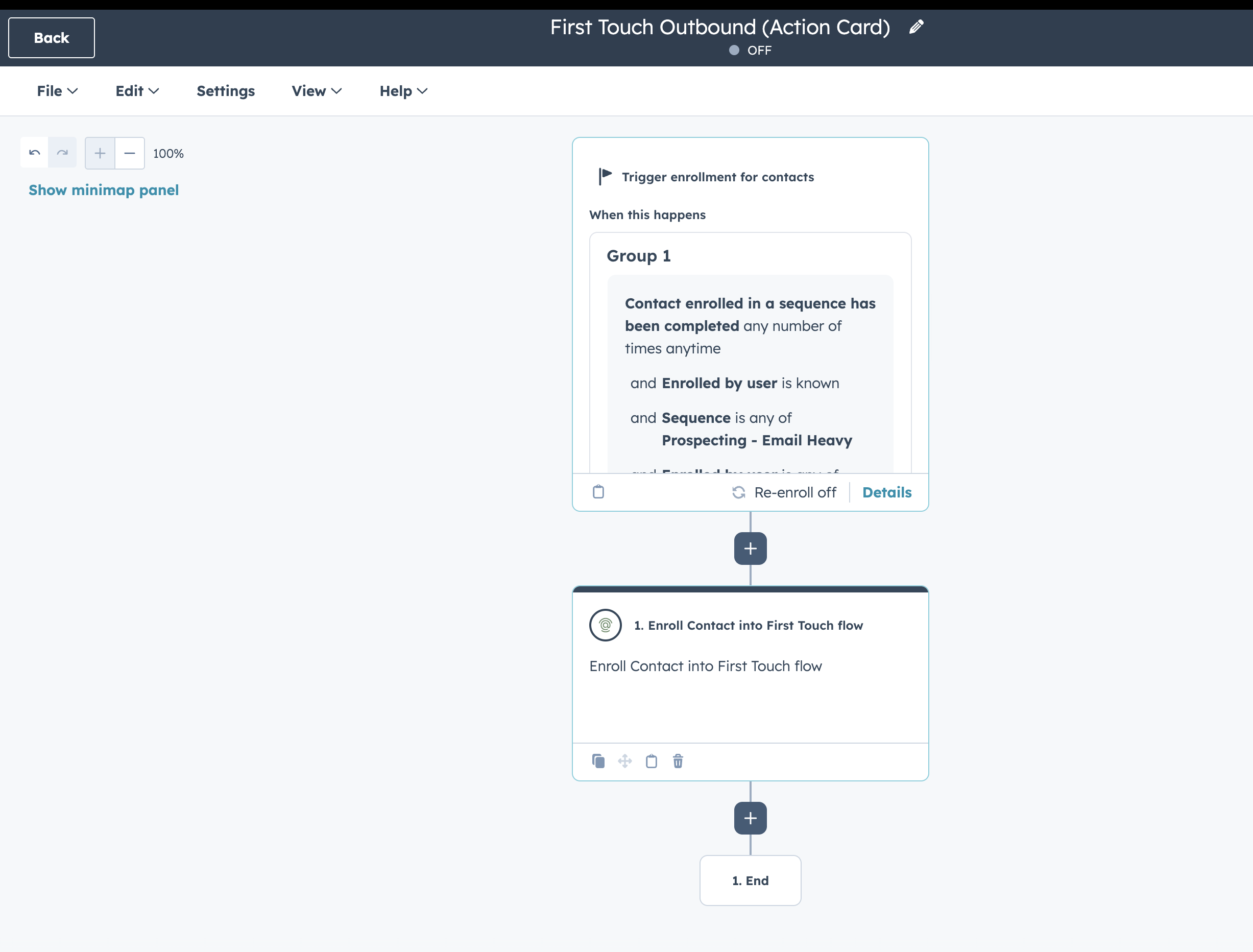 Choose one of the available actions (detailed below).
* **For enrollment:** Select the First Touch flow you want HubSpot to send contacts into.
* **For LinkedIn custom actions:** Select a sender strategy. If you choose **manual**, you must also choose the LinkedIn account to use.
* **For connection requests:** You can optionally supply the note that First Touch should use for the request.
Click **Save**. When the workflow runs, First Touch will process the contact according to the selected action.
## Available Actions
You can mix and match these actions inside HubSpot workflows.
| Action Name | Description & Configuration |
| :--------------------------------------- | :------------------------------------------------------------------------------------------------------------------------------------ |
| **Enroll Contact into First Touch Flow** | Adds the HubSpot contact to the selected First Touch flow. |
| **View LinkedIn Profile** | Queues a LinkedIn profile view from HubSpot. **Config:** choose a sender strategy. |
| **Send LinkedIn Connection Request** | Queues a LinkedIn connection request from HubSpot. **Config:** choose a sender strategy and optionally provide a note. |
| **Check Connection Status** | Checks whether the selected sender is already connected to the contact. Use the result for HubSpot workflow branching when available. |
LinkedIn message and InMail workflow actions are not generally available. Use them only if they appear in your HubSpot action list.
## Sender Strategy Options
Some First Touch custom HubSpot actions support sender selection strategies.
* **By HubSpot company:** First Touch selects a sender using the HubSpot company relationship.
* **By HubSpot contact:** First Touch selects a sender using the HubSpot contact owner.
* **Manual:** You choose the LinkedIn account explicitly for the action.
If your HubSpot portal includes additional First Touch custom action cards, their setup follows the same pattern: add the action in HubSpot, choose the sender strategy, and complete any action-specific inputs shown in HubSpot.
## Wait and Result Behavior
Some actions can return a result to HubSpot after First Touch checks or queues the work. Use wait behavior only when later HubSpot workflow steps need that First Touch result.
If multiple First Touch native action cards run in the same workflow path, the first card that creates the flow enrollment sets the enrollment priority. Later cards do not override that priority.
Choose one of the available actions (detailed below).
* **For enrollment:** Select the First Touch flow you want HubSpot to send contacts into.
* **For LinkedIn custom actions:** Select a sender strategy. If you choose **manual**, you must also choose the LinkedIn account to use.
* **For connection requests:** You can optionally supply the note that First Touch should use for the request.
Click **Save**. When the workflow runs, First Touch will process the contact according to the selected action.
## Available Actions
You can mix and match these actions inside HubSpot workflows.
| Action Name | Description & Configuration |
| :--------------------------------------- | :------------------------------------------------------------------------------------------------------------------------------------ |
| **Enroll Contact into First Touch Flow** | Adds the HubSpot contact to the selected First Touch flow. |
| **View LinkedIn Profile** | Queues a LinkedIn profile view from HubSpot. **Config:** choose a sender strategy. |
| **Send LinkedIn Connection Request** | Queues a LinkedIn connection request from HubSpot. **Config:** choose a sender strategy and optionally provide a note. |
| **Check Connection Status** | Checks whether the selected sender is already connected to the contact. Use the result for HubSpot workflow branching when available. |
LinkedIn message and InMail workflow actions are not generally available. Use them only if they appear in your HubSpot action list.
## Sender Strategy Options
Some First Touch custom HubSpot actions support sender selection strategies.
* **By HubSpot company:** First Touch selects a sender using the HubSpot company relationship.
* **By HubSpot contact:** First Touch selects a sender using the HubSpot contact owner.
* **Manual:** You choose the LinkedIn account explicitly for the action.
If your HubSpot portal includes additional First Touch custom action cards, their setup follows the same pattern: add the action in HubSpot, choose the sender strategy, and complete any action-specific inputs shown in HubSpot.
## Wait and Result Behavior
Some actions can return a result to HubSpot after First Touch checks or queues the work. Use wait behavior only when later HubSpot workflow steps need that First Touch result.
If multiple First Touch native action cards run in the same workflow path, the first card that creates the flow enrollment sets the enrollment priority. Later cards do not override that priority.