> ## Documentation Index
> Fetch the complete documentation index at: https://docs.firsttouch.com/llms.txt
> Use this file to discover all available pages before exploring further.
# HubSpot UI Card
> Manage First Touch tasks, approvals, and enrichment directly inside a HubSpot Contact record.
The **HubSpot UI Card** embeds the power of First Touch directly into the middle column of your HubSpot Contact records. In HubSpot's record-layout editor, this card appears as **First Touch Extension**.
## Setting up the UI Card
By default, the card may not be visible. You must manually add it to your contact record view configuration.
Navigate to any **Contact** record in HubSpot. Click on the **Settings (gear icon)** or find the **Customize record** link (often located in the top right or within the "Actions" dropdown).
Select **Customize the middle column**. Choose the view you want to modify (e.g., **Default view** or a specific Team View).
1. Click the **Add cards** button.
2. Search for **"First Touch Extension"**.
3. Check the box to select it.
4. Drag and drop the card to your desired position (we recommend placing it near the top for better visibility).
Click **Save and exit**. The UI Card will now appear for all contacts using that view.
## Using the Card
The UI Card is dynamic; it changes its interface based on whether the contact is new, being researched, or currently enrolled in a flow.
If you are not signed in to First Touch, the card asks you to log in and refresh the HubSpot card.
 ### 1. Analyzing New Contacts
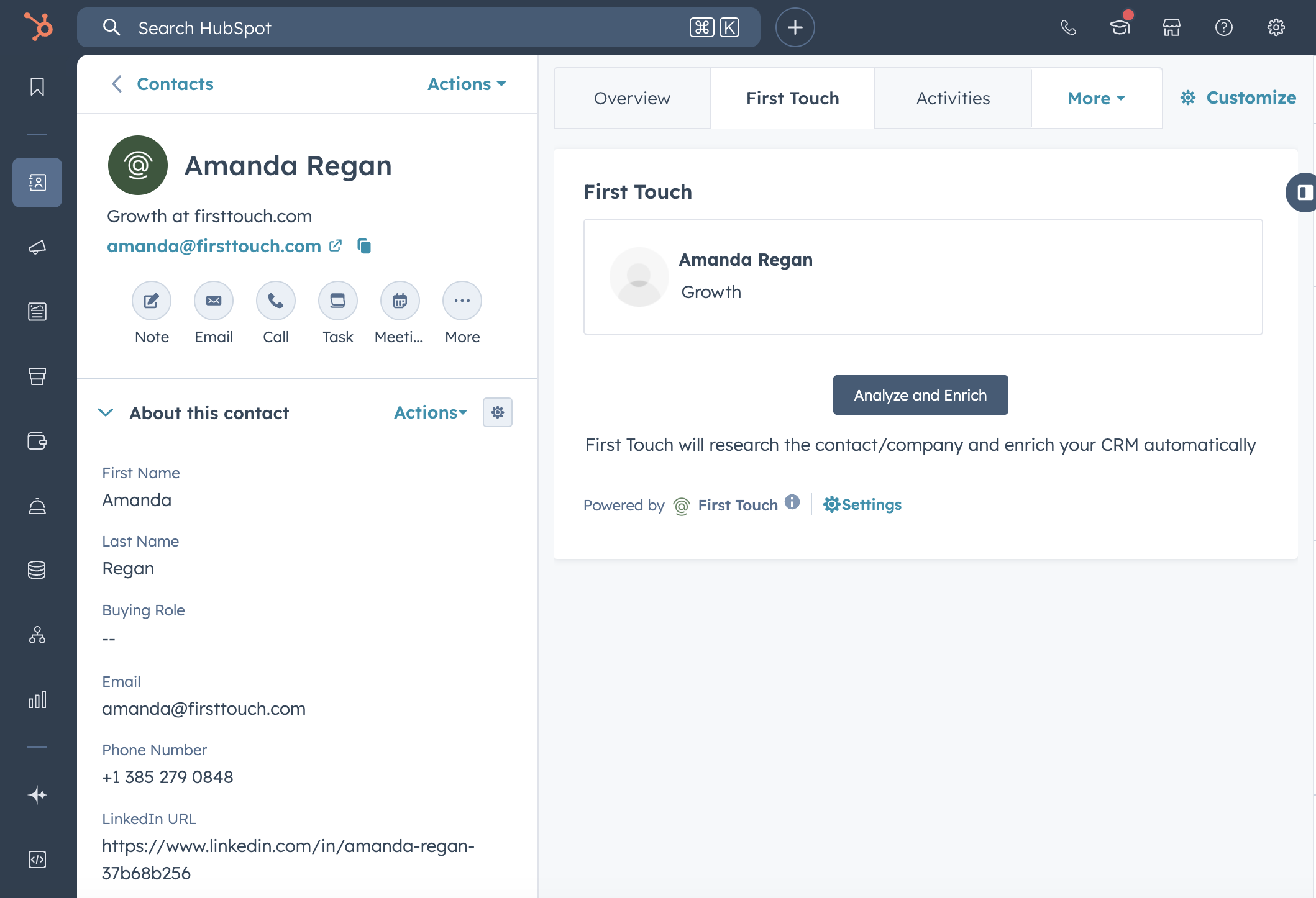
If a contact in HubSpot has not been processed by First Touch yet, the card displays an **"Analyze and Enrich"** button.
### 1. Analyzing New Contacts
If a contact in HubSpot has not been processed by First Touch yet, the card displays an **"Analyze and Enrich"** button.
 * **Action:** Clicking this triggers the AI Agent to research the contact and their company in real-time.
* **Result:** It enriches the HubSpot record with data (e.g., verified email, phone, job title) and prepares the prospect for enrollment.
* **Common Mailbox Handling:** If the contact has a generic email (e.g., `@gmail.com`) and no website domain, the card will prompt you to manually enter a **Company Domain** so the AI can perform accurate company research.
### 2. Managing Active Tasks
If the prospect is enrolled in a flow and reaches a step requiring human intervention, the card displays the active task.
**Review & Edit:** You will see the AI-generated subject and message body.
* **Edit:** You can edit the content directly in the card. Note: The HubSpot card supports **plain text** editing only; rich text formatting is available in the First Touch web app.
* **Execute:** Click **Approve & Run** to send the message immediately and advance the flow.
* **Cancel:** Click **Cancel** to stop the flow for this prospect entirely.
**Dialer Context:** Displays the AI-generated call script (opener, background, reasoning) and the prospect's phone number.
* **Log:** After making the call, use standard HubSpot logging or First Touch specific buttons (if available) to mark the step as complete.
### 3. Viewing Intelligence
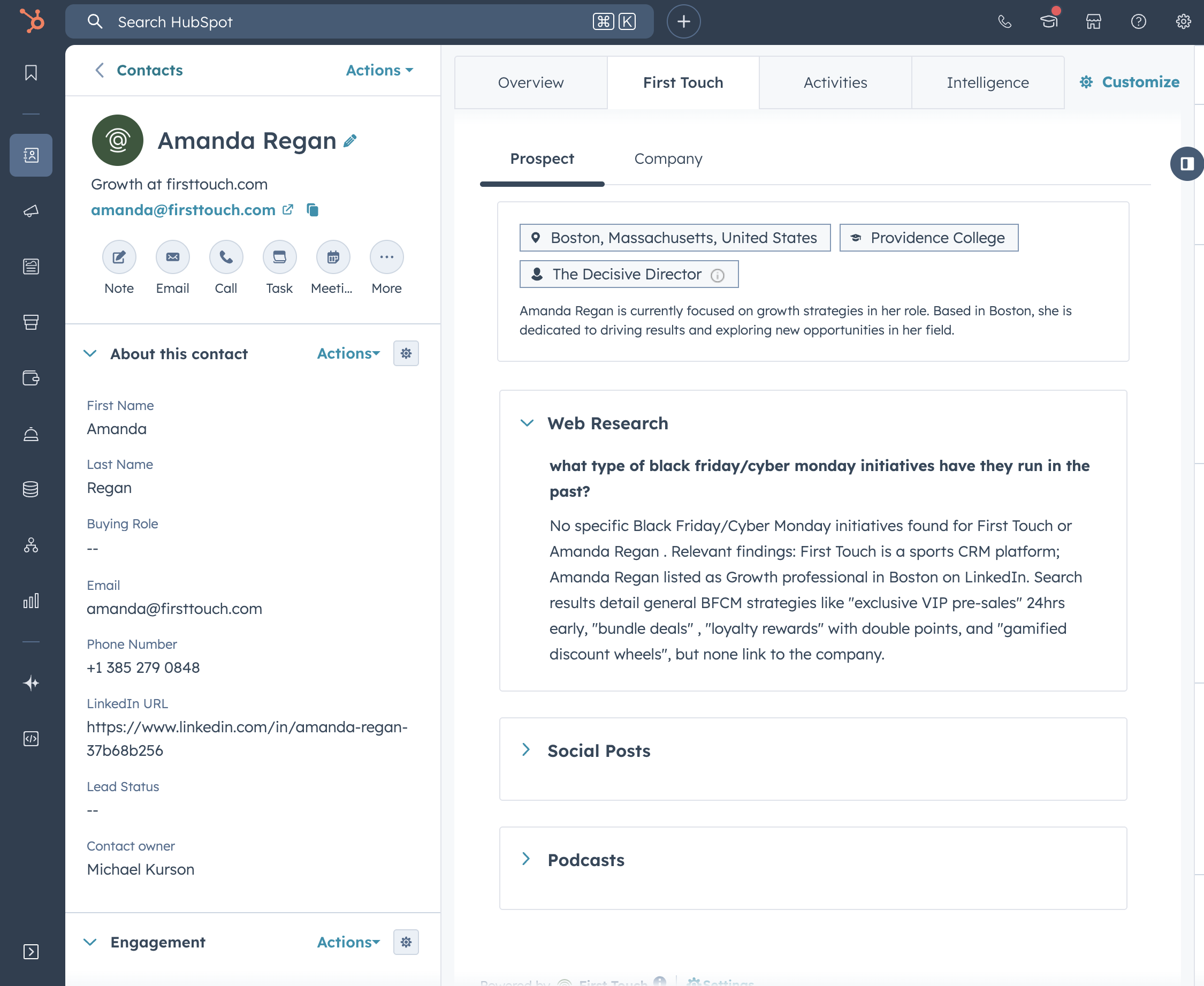
Even if no task is due, the card acts as a research dossier. You can toggle between tabs to view deep insights:
* **Prospect Tab:** AI background summary, education, location, and personality insights.
* **Company Tab:** Funding data, tech stack, recent news, and hiring trends.
* **Activities Tab:** Recent First Touch activity, status, and outcome details when available.
The card can also show banners for important outcomes such as completed activity, reply received, meeting booked, canceled, or failed.
* **Action:** Clicking this triggers the AI Agent to research the contact and their company in real-time.
* **Result:** It enriches the HubSpot record with data (e.g., verified email, phone, job title) and prepares the prospect for enrollment.
* **Common Mailbox Handling:** If the contact has a generic email (e.g., `@gmail.com`) and no website domain, the card will prompt you to manually enter a **Company Domain** so the AI can perform accurate company research.
### 2. Managing Active Tasks
If the prospect is enrolled in a flow and reaches a step requiring human intervention, the card displays the active task.
**Review & Edit:** You will see the AI-generated subject and message body.
* **Edit:** You can edit the content directly in the card. Note: The HubSpot card supports **plain text** editing only; rich text formatting is available in the First Touch web app.
* **Execute:** Click **Approve & Run** to send the message immediately and advance the flow.
* **Cancel:** Click **Cancel** to stop the flow for this prospect entirely.
**Dialer Context:** Displays the AI-generated call script (opener, background, reasoning) and the prospect's phone number.
* **Log:** After making the call, use standard HubSpot logging or First Touch specific buttons (if available) to mark the step as complete.
### 3. Viewing Intelligence
Even if no task is due, the card acts as a research dossier. You can toggle between tabs to view deep insights:
* **Prospect Tab:** AI background summary, education, location, and personality insights.
* **Company Tab:** Funding data, tech stack, recent news, and hiring trends.
* **Activities Tab:** Recent First Touch activity, status, and outcome details when available.
The card can also show banners for important outcomes such as completed activity, reply received, meeting booked, canceled, or failed.