> ## Documentation Index
> Fetch the complete documentation index at: https://docs.firsttouch.com/llms.txt
> Use this file to discover all available pages before exploring further.
# HubSpot Setup Guide
> Connect, configure, and manage the First Touch integration for HubSpot.
**First Touch** connects HubSpot to your outbound workflows. After connecting your account, you can enroll contacts from HubSpot workflows, sync HubSpot list audiences into First Touch, map HubSpot fields, and log supported activity back to the HubSpot contact timeline.
**Prerequisites:**
* **HubSpot Permissions:** Super Admin or App Marketplace access.
* **First Touch Account:** You can create one during the setup process.
## 1. Installation
Follow these steps to authorize the secure connection between First Touch and HubSpot.
Log in to your First Touch dashboard at **[app.firsttouch.ai](https://app.firsttouch.ai)**.
Go to **Team Settings > Integrations**.
Locate the HubSpot integration card and click the **'Connect'** button.
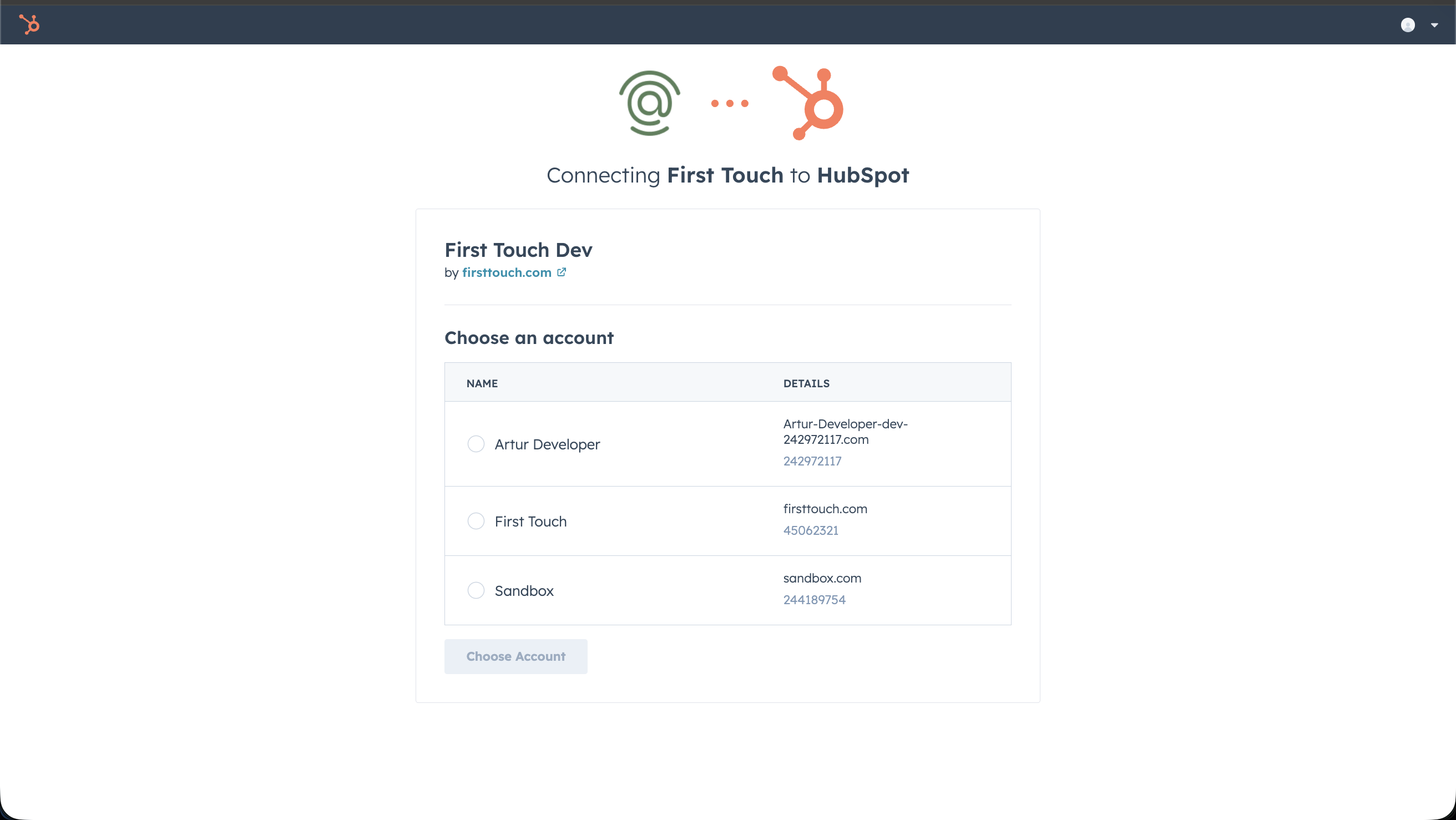
You will be redirected to HubSpot. Select the HubSpot portal you want to connect, review the requested permissions, and click **'Connect app'**.
Depending on your HubSpot session, HubSpot may first ask you to choose an account or confirm the warning shown for an unverified app before you can continue.
 ## 2. Configure First Touch
After the connection succeeds, click **Settings** on the HubSpot card in **Team Settings > Integrations**.
The current HubSpot settings view includes:
* **Connection status:** Review the connected account and disconnect if needed.
* **Account ownership:** Decide what First Touch should do when a HubSpot owner is outside your team.
* **Engagement tracking:** Control which supported LinkedIn events are logged to the HubSpot contact timeline.
* **Company field mapping:** Map First Touch company fields to HubSpot company properties.
* **Contact field mapping:** Map First Touch contact fields to HubSpot contact properties.
Some mapping rows are locked because First Touch uses them to match and update the right HubSpot records.
## 3. Optional: Add the HubSpot Record Card
If your team wants to review First Touch tasks directly inside HubSpot, add the First Touch card to your contact record layout.
1. Navigate to any **Contact** record in HubSpot.
2. Click **Customize record**.
3. Open the middle-column card editor for the view you want to update.
4. Click **Add cards**.
5. Search for **"First Touch Extension"**.
6. Add the card and save the layout.
## 4. Usage
First Touch works by moving HubSpot contacts into First Touch workflows and keeping key CRM context in sync.
### Enroll Contacts
There are two primary ways to push HubSpot contacts into First Touch:
**Best for: Automation**
Trigger enrollment from HubSpot workflows based on lead score, lifecycle stage, form fills, or other HubSpot conditions.
1. In a HubSpot contact-based workflow, add an action.
2. Open **Integrated apps** > **First Touch**.
3. Select the First Touch action you want to run.
**Best for: Bulk Enrollment**
1. Use HubSpot Lists to define your audience.
2. Sync these lists directly via First Touch audiences inside the First Touch web app.
### Manage Actions in HubSpot
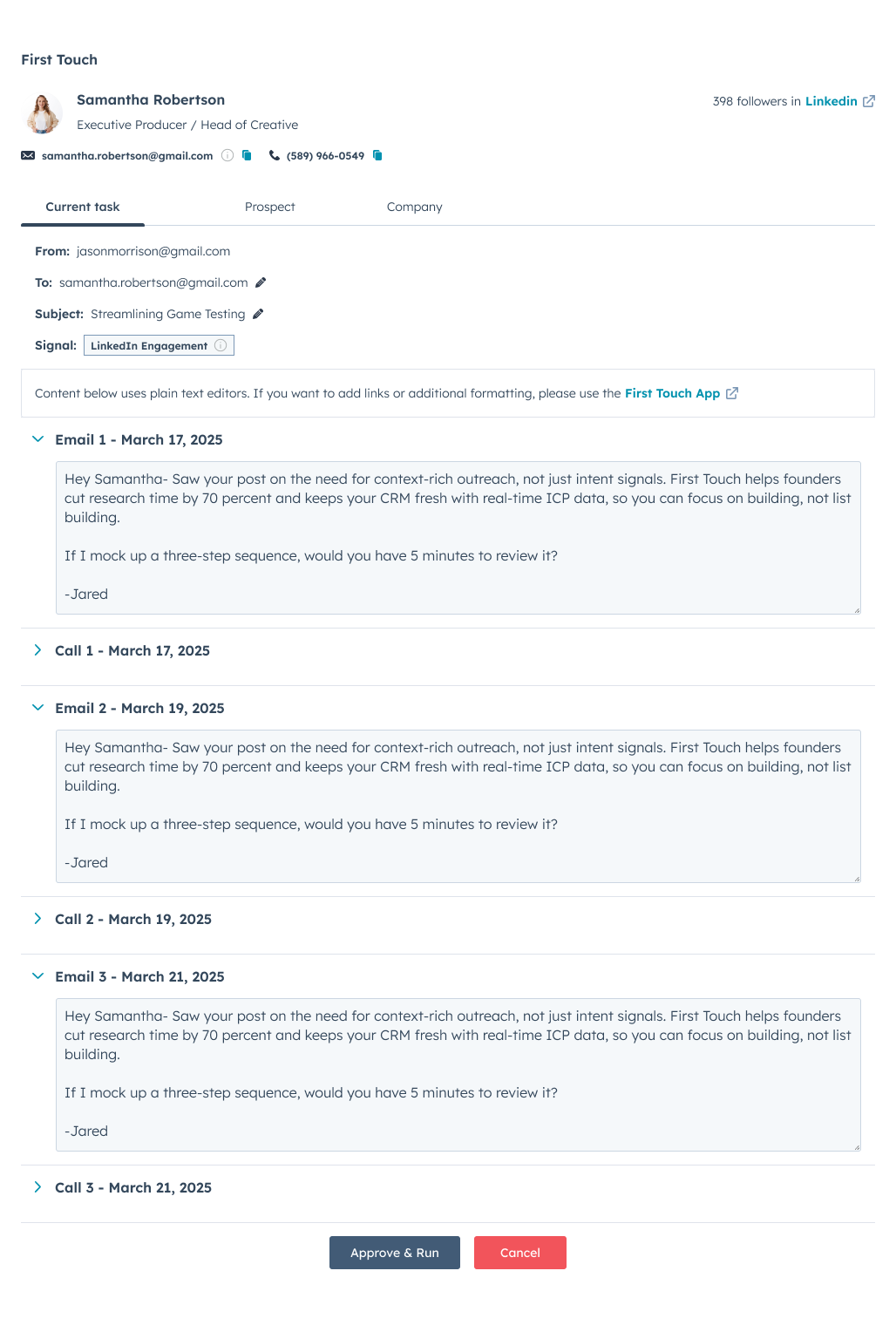
When you add the First Touch record card to a HubSpot contact, First Touch tasks can be reviewed there without leaving HubSpot.
* **Review & Edit:** Check the drafted message content.
* **Approve/Cancel:** Execute the outbound action directly from the card.
### Activity Timeline
Supported LinkedIn activity can be logged back to the HubSpot contact timeline, depending on the **Engagement tracking** settings enabled in First Touch.
## 2. Configure First Touch
After the connection succeeds, click **Settings** on the HubSpot card in **Team Settings > Integrations**.
The current HubSpot settings view includes:
* **Connection status:** Review the connected account and disconnect if needed.
* **Account ownership:** Decide what First Touch should do when a HubSpot owner is outside your team.
* **Engagement tracking:** Control which supported LinkedIn events are logged to the HubSpot contact timeline.
* **Company field mapping:** Map First Touch company fields to HubSpot company properties.
* **Contact field mapping:** Map First Touch contact fields to HubSpot contact properties.
Some mapping rows are locked because First Touch uses them to match and update the right HubSpot records.
## 3. Optional: Add the HubSpot Record Card
If your team wants to review First Touch tasks directly inside HubSpot, add the First Touch card to your contact record layout.
1. Navigate to any **Contact** record in HubSpot.
2. Click **Customize record**.
3. Open the middle-column card editor for the view you want to update.
4. Click **Add cards**.
5. Search for **"First Touch Extension"**.
6. Add the card and save the layout.
## 4. Usage
First Touch works by moving HubSpot contacts into First Touch workflows and keeping key CRM context in sync.
### Enroll Contacts
There are two primary ways to push HubSpot contacts into First Touch:
**Best for: Automation**
Trigger enrollment from HubSpot workflows based on lead score, lifecycle stage, form fills, or other HubSpot conditions.
1. In a HubSpot contact-based workflow, add an action.
2. Open **Integrated apps** > **First Touch**.
3. Select the First Touch action you want to run.
**Best for: Bulk Enrollment**
1. Use HubSpot Lists to define your audience.
2. Sync these lists directly via First Touch audiences inside the First Touch web app.
### Manage Actions in HubSpot
When you add the First Touch record card to a HubSpot contact, First Touch tasks can be reviewed there without leaving HubSpot.
* **Review & Edit:** Check the drafted message content.
* **Approve/Cancel:** Execute the outbound action directly from the card.
### Activity Timeline
Supported LinkedIn activity can be logged back to the HubSpot contact timeline, depending on the **Engagement tracking** settings enabled in First Touch.
 ## 5. Uninstalling
If you need to disconnect the integration, you must remove it from your HubSpot portal settings.
**Instructions:**
To uninstall, go to **HubSpot Settings > Integrations > Connected Apps**. Find **First Touch**, click **'Actions'**, and select **'Uninstall'**.
Uninstalling the app will stop all active First Touch workflows and prevent further data syncing. Historical data logged to the timeline will remain.
## 5. Uninstalling
If you need to disconnect the integration, you must remove it from your HubSpot portal settings.
**Instructions:**
To uninstall, go to **HubSpot Settings > Integrations > Connected Apps**. Find **First Touch**, click **'Actions'**, and select **'Uninstall'**.
Uninstalling the app will stop all active First Touch workflows and prevent further data syncing. Historical data logged to the timeline will remain.