> ## Documentation Index
> Fetch the complete documentation index at: https://docs.firsttouch.com/llms.txt
> Use this file to discover all available pages before exploring further.
# The Action Bar
> A comprehensive guide to the AI-powered engagement tools in the extension.
The **Action Bar** is the set of AI-powered tools in the extension that help you engage the prospect. With a single click, you can generate various types of outreach content.
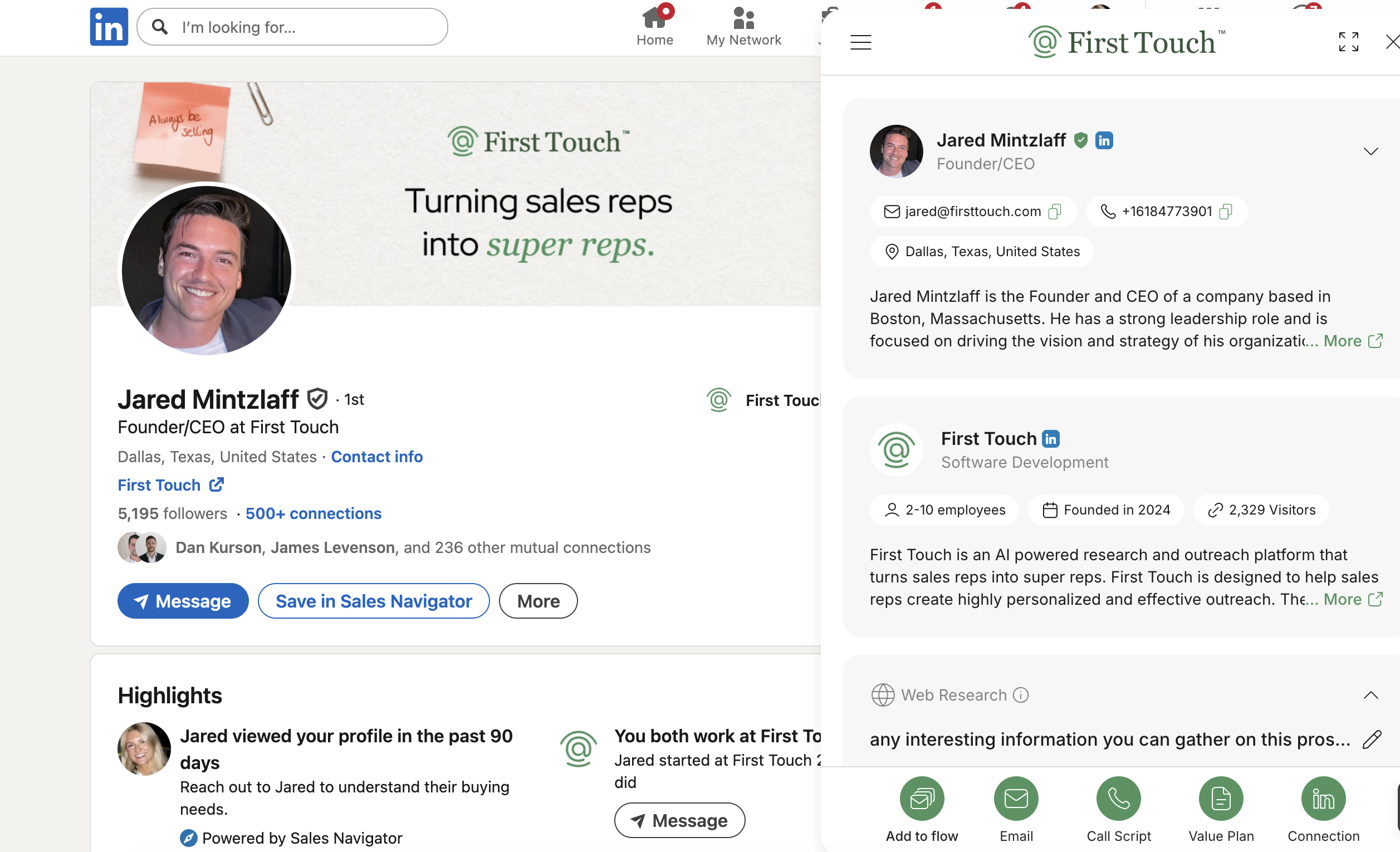 Each tool opens a focused interface in the sidebar. Click a card below to jump to that section:
Generate, customize, and send personalized emails.
Generate a connection note to use manually on LinkedIn.
Generate conversation outlines and voicemail scripts.
Formulate a "Value Hypothesis" for your outreach.
Enroll prospects into automated sequences.
Edits are saved when the edited field or content editor loses focus.
***
## Email
On the **Email** tab, First Touch uses information about the prospect (profile summary, posts) and your context (Knowledge Base) to draft a highly tailored message.
Click the **Generate Email** button. The AI combines your profile, company info, and prospect research to produce a first draft.
* **Result:** Within seconds, the tab populates with a suggested **subject line** and **email body**.
The AI typically generates a few potential subject lines. One is selected by default, but you can click the dropdown to view alternatives, choose a different one, or edit it entirely.
The draft appears in an editor where you can adjust the tone, add personal references, or include custom calls-to-action.
* **Features:** Basic formatting (bold, italics, lists, links). Edits save when the editor loses focus.
* **Regenerate:** If you don't like the draft, click **Regenerate** to try a different approach.
Click **Send**. The email is sent **directly from your connected email account** (e.g. Gmail or Outlook). The prospect receives it as an email from *you*, with your signature included based on your settings.
### Handling Responses & Follow-Ups
If the prospect doesn't reply, you have flexible options:
* **Manual:** Return to the profile later and manually generate a new follow-up email.
* **Add to Flow:** Enroll them in a longer-term sequence (see [Add to Flow](#add-to-flow)) to automate future touches.
When FirstTouch detects an email reply from the prospect, it stops matching active Flow Enrollments for that prospect in the Team.
**Stop on Reply:** Email reply handling applies across matching Team Flow Enrollments; it is not conditional on a per-flow Stop on Reply setting.
***
## LinkedIn Connection Note
The **LinkedIn** tab generates a personalized connection-request note for the prospect.
**Manual LinkedIn Use:** The First Touch Chrome Extension does not send the connection request. Review the generated note and use it manually in LinkedIn.
### The Workflow
Switch to the **LinkedIn** tab and generate a connection note. The AI uses your profile, Knowledge Base, and available prospect activity to draft concise text.
Edit the draft to ensure the tone is genuine. We recommend adding a personal touch, such as mentioning a mutual connection or specific profile detail.
You remain in control of the sending process:
1. **Copy** the note from the extension.
2. **Paste** it into the LinkedIn connection invite field.
3. **Send** the connection request manually on LinkedIn.
***
## Call Script
Clicking the **Call (phone)** icon generates a quick outline for a phone call or voicemail. It serves as a cheat-sheet to help you **sound prepared and relevant**.
### What's Included?
* **Opening Line:** Friendly opener using prospect info or mutual context.
* **Value Points:** Key questions or insights to cover during the call.
* **The Close:** Suggested next steps or meeting requests.
* **Evidence:** Data points from your Knowledge Base or their recent news.
**Example Output:** *"Hi \[Name], this is \[Your Name] from \[Your Company]. I saw that \[Prospect Company] recently \[relevant detail]. We helped another client in your space with \[pain point]... I was curious how you’re handling \[specific challenge] right now?"*
## Value Plan
The **Value Plan** helps you articulate *why* you are reaching out. It ensures your outreach is relevant and centered on the prospect's needs.
### Plan Components
Clicking **Generate** creates a summary called a "Value Hypothesis":
| Component | Description |
| :------------ | :------------------------------------------------------------------------------------------ |
| **Name** | Who the plan is for (Prospect/Company name). |
| **Challenge** | A likely pain point inferred from their role or industry (e.g. "Scaling sales team"). |
| **Evidence** | Specific insight from research suggesting the challenge is real (e.g. "Hiring 5 new reps"). |
| **Solution** | How your product helps, tailored to their scenario. |
**Power User Tip:** You can feed the Value Plan details into the **Email Generator** to have the AI craft an email specifically around that value hypothesis.
***
## Add to Flow
**Add to Flow** connects on-the-fly prospecting with scalable Flow Plans. It is available on paid Teams and enrolls the current prospect through an eligible Audience.
**Requirements:** A manual or system Audience must be attached to a Live Flow Plan. Draft Flow Plans cannot accept extension enrollment.
Click the **Add to Flow** button. The dropdown shows Audience-backed options rather than every Flow Plan directly. It loads up to 100 manual or system Audiences, and search filters only those loaded options.
FirstTouch checks the known enrollment state before enabling the action. **Add to Flow** from the Chrome Extension does not apply the standard Exclusion List check, so review exclusions before enrolling the prospect.
**Did you just write an email in the extension?** If you drafted an email but haven't sent it, First Touch can **reuse that draft as Step 1** of the flow.
* **Why:** Your perfect intro email sends first, followed by the automated steps defined in the flow.
Once added, the prospect moves through the flow schedule.
* **Visibility:** Track their status in the **Flows** section of the web app.
* **Approvals:** If a step requires approval, it will appear in your Tasks list.
* **Stops:** If FirstTouch detects an email reply, it stops matching active Team Flow Enrollments for that prospect.
Each tool opens a focused interface in the sidebar. Click a card below to jump to that section:
Generate, customize, and send personalized emails.
Generate a connection note to use manually on LinkedIn.
Generate conversation outlines and voicemail scripts.
Formulate a "Value Hypothesis" for your outreach.
Enroll prospects into automated sequences.
Edits are saved when the edited field or content editor loses focus.
***
## Email
On the **Email** tab, First Touch uses information about the prospect (profile summary, posts) and your context (Knowledge Base) to draft a highly tailored message.
Click the **Generate Email** button. The AI combines your profile, company info, and prospect research to produce a first draft.
* **Result:** Within seconds, the tab populates with a suggested **subject line** and **email body**.
The AI typically generates a few potential subject lines. One is selected by default, but you can click the dropdown to view alternatives, choose a different one, or edit it entirely.
The draft appears in an editor where you can adjust the tone, add personal references, or include custom calls-to-action.
* **Features:** Basic formatting (bold, italics, lists, links). Edits save when the editor loses focus.
* **Regenerate:** If you don't like the draft, click **Regenerate** to try a different approach.
Click **Send**. The email is sent **directly from your connected email account** (e.g. Gmail or Outlook). The prospect receives it as an email from *you*, with your signature included based on your settings.
### Handling Responses & Follow-Ups
If the prospect doesn't reply, you have flexible options:
* **Manual:** Return to the profile later and manually generate a new follow-up email.
* **Add to Flow:** Enroll them in a longer-term sequence (see [Add to Flow](#add-to-flow)) to automate future touches.
When FirstTouch detects an email reply from the prospect, it stops matching active Flow Enrollments for that prospect in the Team.
**Stop on Reply:** Email reply handling applies across matching Team Flow Enrollments; it is not conditional on a per-flow Stop on Reply setting.
***
## LinkedIn Connection Note
The **LinkedIn** tab generates a personalized connection-request note for the prospect.
**Manual LinkedIn Use:** The First Touch Chrome Extension does not send the connection request. Review the generated note and use it manually in LinkedIn.
### The Workflow
Switch to the **LinkedIn** tab and generate a connection note. The AI uses your profile, Knowledge Base, and available prospect activity to draft concise text.
Edit the draft to ensure the tone is genuine. We recommend adding a personal touch, such as mentioning a mutual connection or specific profile detail.
You remain in control of the sending process:
1. **Copy** the note from the extension.
2. **Paste** it into the LinkedIn connection invite field.
3. **Send** the connection request manually on LinkedIn.
***
## Call Script
Clicking the **Call (phone)** icon generates a quick outline for a phone call or voicemail. It serves as a cheat-sheet to help you **sound prepared and relevant**.
### What's Included?
* **Opening Line:** Friendly opener using prospect info or mutual context.
* **Value Points:** Key questions or insights to cover during the call.
* **The Close:** Suggested next steps or meeting requests.
* **Evidence:** Data points from your Knowledge Base or their recent news.
**Example Output:** *"Hi \[Name], this is \[Your Name] from \[Your Company]. I saw that \[Prospect Company] recently \[relevant detail]. We helped another client in your space with \[pain point]... I was curious how you’re handling \[specific challenge] right now?"*
## Value Plan
The **Value Plan** helps you articulate *why* you are reaching out. It ensures your outreach is relevant and centered on the prospect's needs.
### Plan Components
Clicking **Generate** creates a summary called a "Value Hypothesis":
| Component | Description |
| :------------ | :------------------------------------------------------------------------------------------ |
| **Name** | Who the plan is for (Prospect/Company name). |
| **Challenge** | A likely pain point inferred from their role or industry (e.g. "Scaling sales team"). |
| **Evidence** | Specific insight from research suggesting the challenge is real (e.g. "Hiring 5 new reps"). |
| **Solution** | How your product helps, tailored to their scenario. |
**Power User Tip:** You can feed the Value Plan details into the **Email Generator** to have the AI craft an email specifically around that value hypothesis.
***
## Add to Flow
**Add to Flow** connects on-the-fly prospecting with scalable Flow Plans. It is available on paid Teams and enrolls the current prospect through an eligible Audience.
**Requirements:** A manual or system Audience must be attached to a Live Flow Plan. Draft Flow Plans cannot accept extension enrollment.
Click the **Add to Flow** button. The dropdown shows Audience-backed options rather than every Flow Plan directly. It loads up to 100 manual or system Audiences, and search filters only those loaded options.
FirstTouch checks the known enrollment state before enabling the action. **Add to Flow** from the Chrome Extension does not apply the standard Exclusion List check, so review exclusions before enrolling the prospect.
**Did you just write an email in the extension?** If you drafted an email but haven't sent it, First Touch can **reuse that draft as Step 1** of the flow.
* **Why:** Your perfect intro email sends first, followed by the automated steps defined in the flow.
Once added, the prospect moves through the flow schedule.
* **Visibility:** Track their status in the **Flows** section of the web app.
* **Approvals:** If a step requires approval, it will appear in your Tasks list.
* **Stops:** If FirstTouch detects an email reply, it stops matching active Team Flow Enrollments for that prospect.